
How to Uninstall Unnecessary Programs in Windows

Over time, computers often accumulate programs that are no longer being used. Some were installed for a specific task, others came with different applications, and some simply became unnecessary.
Removing unnecessary programs can free up disk space and make your computer easier to manage. The important thing is to uninstall applications correctly instead of simply deleting their folders manually.
How to uninstall a program in Windows
In modern versions of Windows, the easiest method is to open Settings and go to the installed apps section.
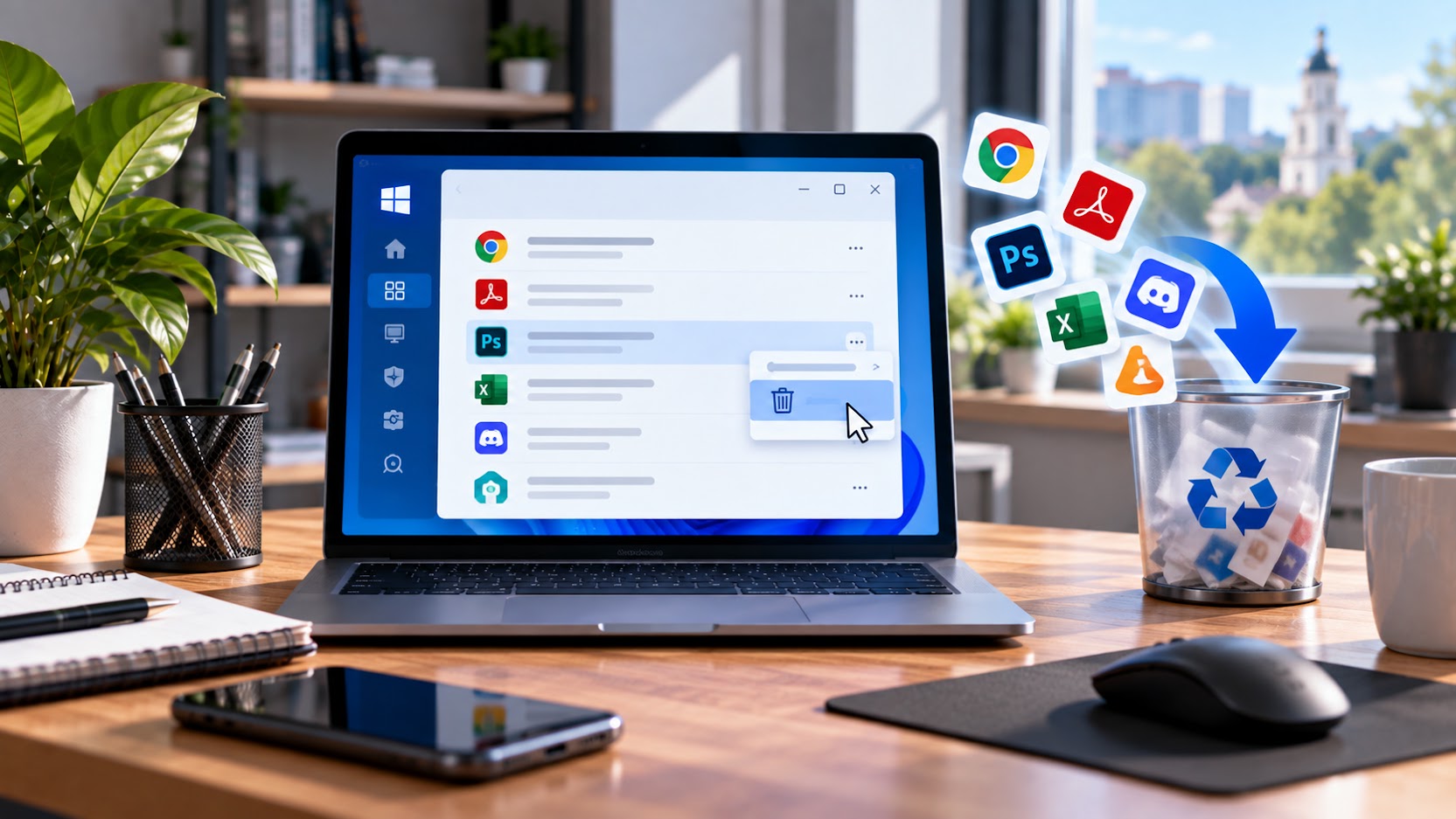
Open Settings > Apps > Installed apps. You will see a list of programs installed on the computer. Find the application you no longer use, open its menu, and select Uninstall.
Follow the instructions on the screen until the process is complete.
Uninstall programs through Control Panel
Some Windows programs can also be removed through the classic Control Panel.
Open Control Panel, go to Programs > Programs and Features, select the program you want to remove, and click Uninstall.
This method is particularly useful for traditional desktop applications that may not appear or behave the same way in the modern Windows apps list.
Do not simply delete the program folder
A common mistake is finding a program folder in Program Files and deleting it manually. This is not a proper uninstall.
A program may have files, services, settings, or other components stored in different locations. Whenever an official uninstall option is available, use it instead.
Which programs can you remove?
Start with applications you know you no longer use. These may include old versions of programs, games you no longer play, applications installed for a temporary project, or tools you no longer need.
If you do not know what a program does, do not uninstall it simply because its name looks unfamiliar. Some components are required by Windows or other applications.
How to identify programs you no longer need
Start by reviewing the list of installed applications. Look at the program names and, when available, their size.
Large programs that you have not used for a long time may take up significant disk space. Before uninstalling them, make sure you no longer need them and that they do not contain important personal data.
What if a program cannot be uninstalled?
Sometimes an uninstall process can fail because a program is still running, an error has occurred, or the installation has become corrupted.
First, close the program completely and restart the computer. Then try uninstalling it again. Some applications also provide their own uninstall utility from the developer.
If the problem continues, it is better to identify the cause before manually deleting program files.
Will uninstalling programs make the computer faster?
Removing unnecessary applications can free up disk space and reduce the number of programs that start automatically, but uninstalling a few applications does not necessarily make a computer noticeably faster.
If your computer is slow, the cause may be insufficient RAM, a nearly full drive, too many startup applications, or another software or hardware problem.
Conclusion
To remove unnecessary programs, use the built-in Windows uninstall function or Control Panel. Avoid simply deleting the application’s folder from the drive.
Before uninstalling anything, make sure you no longer need it. If you are unsure what an unfamiliar system component does, it is better to leave it alone. Regularly reviewing installed applications can help keep your computer organized.
If you need help with your computer, Windows, or other technical issues, AsideWeb.md can help with the technical side. For web projects, AsideWeb.md handles website development and technical configuration, while the website remains hosted in the owner’s own hosting account.
Have a Project in Mind?
Tell us about your project and we will help you find the best solution.