
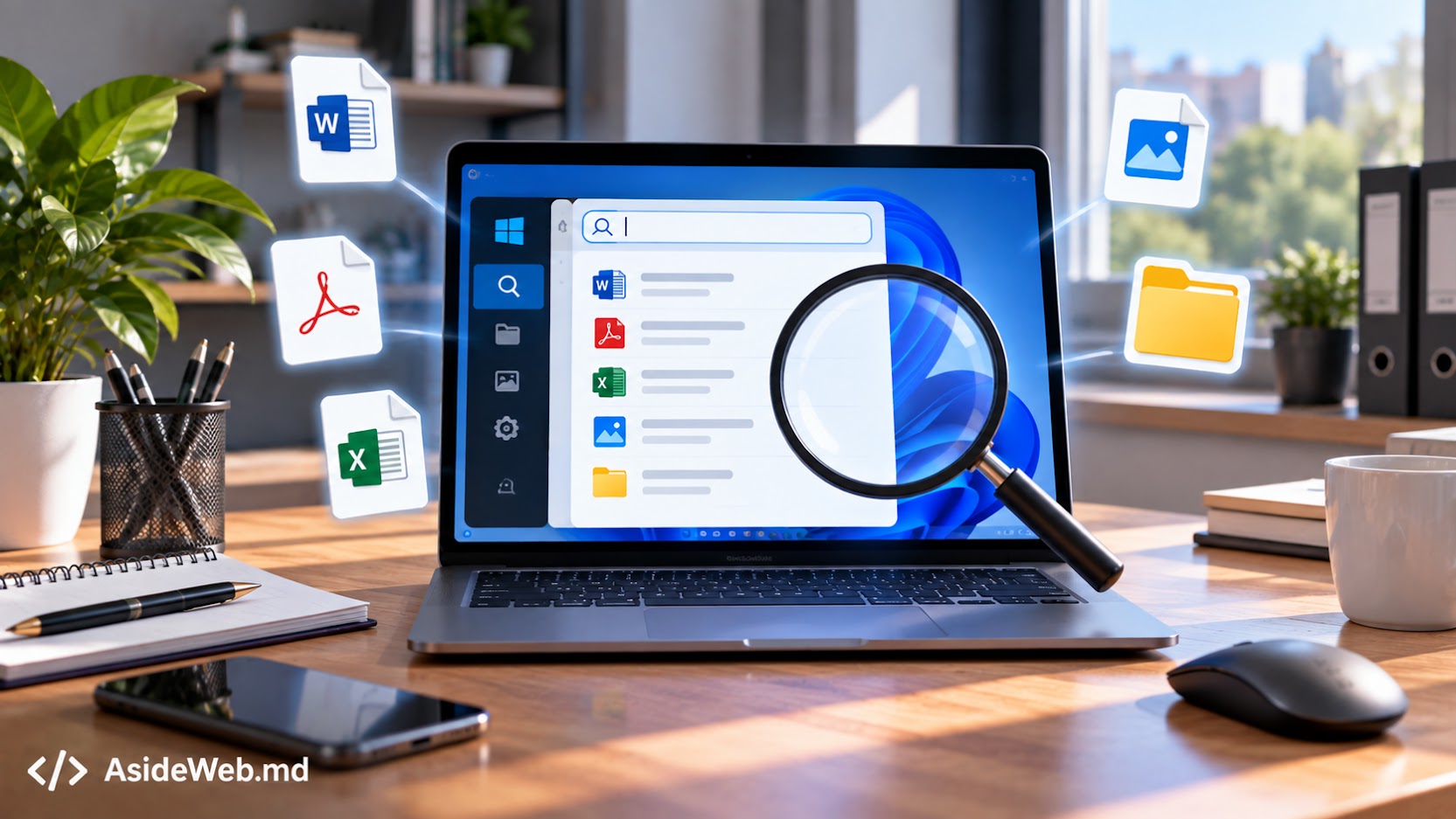
How to Quickly Find a File on Your Computer

When your computer contains hundreds or even thousands of documents, finding one particular file can take a surprising amount of time. Fortunately, Windows provides several convenient ways to quickly find a document, photo, PDF, or another type of file.
How to quickly find a file on your computer
The easiest method is to use Windows Search. If you remember the file name or at least part of it, you can often find the file within a few seconds.
Search for a file from the Start menu
Press the Windows key on your keyboard and start typing the name of the file you are looking for.
Windows will display matching results. You can enter the complete file name or only part of it. For example, if a document is called “company-contract-2026.docx”, you can search for “contract” or “company”.
This method is especially useful when you no longer remember which folder contains the file.
Use File Explorer
Open File Explorer and go to the folder where you think the file is located. You will find the search field in the upper-right area of the window.
Enter the file name or part of it and wait for the results. If you are searching in a specific folder such as Documents or Downloads, this can be easier to control than searching the entire computer.
Don’t remember the full name? Search for part of it
You do not need to remember the exact file name. If you only remember one word from the name, use that word in the search.
For example, for a file called “web-services-quote-2026.pdf”, you could search for “quote”, “web”, or “services”.
The more specific the search term, the fewer results you will usually have to review.
Search by file type
If you do not remember the file name but know what type of file it was, you can search by its extension.
For example, you can search for files with the .pdf, .docx, .xlsx, .jpg extension or another file type.
This is useful when you know the document was a PDF but cannot remember its name.
Search by modification date
If you do not remember the file name either, try narrowing the results by the date the file was created or modified.
File Explorer provides sorting and search options that can help you identify recently modified files. For example, if you worked on a document yesterday, checking recently modified files may be much faster than going through every folder.
Check the folders where files are usually saved
Before searching the entire computer, check the folders where files are commonly stored:
- Downloads — files downloaded from the internet;
- Documents — documents and work materials;
- Pictures — photos and images;
- Desktop — files that are frequently used or temporarily stored there.
Very often, the file has not disappeared at all. It was simply saved in a folder you do not normally check.
What if Windows cannot find the file?
First, try searching for a shorter part of the file name. Also check whether the file may have been saved under a different name.
Then check the Downloads, Documents, and Desktop folders. If the file was received by email or through a messaging application, it may have been saved somewhere else.
If you suspect that the file was accidentally deleted, it is also worth checking the Recycle Bin.
How to avoid losing files in the future
The easiest way to find documents quickly is to create a clear folder structure. Instead of storing everything on the desktop, create separate folders for work, personal documents, projects, photos, and other important categories.
Use clear file names as well. A file named “Company_Contract_2026.pdf” is much easier to find than one called “Document123.pdf”.
Conclusion
If you have lost a file on your computer, you do not need to check every folder manually. Start with Windows Search, then use File Explorer and narrow the results by name, extension, or modification date when necessary.
In the long term, a clear folder structure and simple file names can save you a significant amount of time.
If you need help with the technical organization of a website or with developing a website for your business, AsideWeb.md can handle the development and configuration. The website remains hosted in the owner’s own hosting account, so the owner keeps control of the project.
Have a Project in Mind?
Tell us about your project and we will help you find the best solution.