
PHP Vulnerabilities in Moldova: How to Secure Your Website

Website security depends on more than passwords, plugins and protection against attacks. The PHP version running on your server also matters. On 21 October 2026, the PHP team released security updates for two critical vulnerabilities that could allow remote code execution without authentication under certain conditions. These vulnerabilities are relevant to WordPress websites, online stores and web applications hosted in the Republic of Moldova as well as internationally.
What PHP vulnerabilities were announced in October 2026?
On 21 October 2026, the PHP project announced fixes for CVE-2026-109618 and CVE-2026-109619. Both vulnerabilities were classified as critical and could allow an attacker to execute code on a vulnerable server without logging in. The actual risk depends on the PHP version and the server environment.
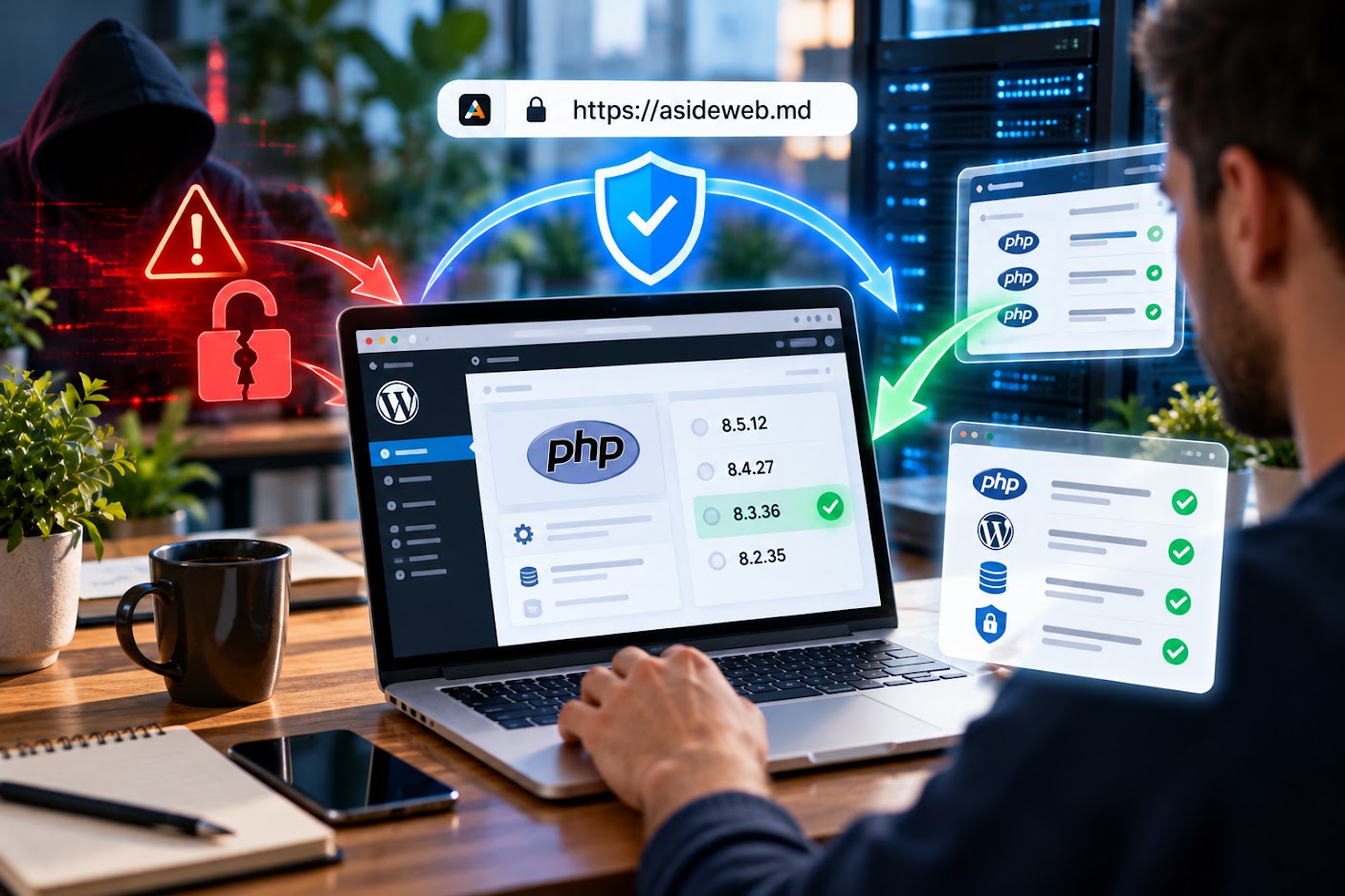
The patched versions released on 21 October are PHP 8.5.12, 8.4.27, 8.3.36 and 8.2.35. If your website runs an earlier release in one of these branches, contact your hosting provider promptly to confirm that a security update is available and installed. For official details, visit the PHP news archive.
How to check your website’s PHP version
Whether your website is hosted in Moldova or with an international provider, you can usually check the PHP version in your hosting control panel. In cPanel, look for “MultiPHP Manager”, “Select PHP Version” or a similar tool. The exact name depends on the server configuration. Select your domain and check the active PHP version.
If you cannot access the control panel, contact your hosting provider and ask which PHP version is active for your domain and whether the relevant security fixes have been applied. You can also check the version using a temporary PHP file, but it must be removed immediately afterwards.
For example, create a file named php-version.php containing:
<?php
echo PHP_VERSION;
Upload the file to your website directory and open its address in a browser. Delete it from the server immediately after checking the version. Do not leave diagnostic files publicly accessible. The phpinfo() function can reveal additional server configuration details, but it should never be left publicly accessible either.
How to update PHP through cPanel
Before changing PHP versions, create a backup of your website files and database. Check that your WordPress theme and plugins are compatible with the version you plan to activate.
The usual process is:
- Log in to cPanel.
- Open “MultiPHP Manager”, “Select PHP Version” or the equivalent hosting tool.
- Select your domain and choose a supported PHP release that includes the required security fixes.
- Save the change and test your website, WordPress dashboard, forms and key functions.
Do not assume that choosing a higher version number automatically solves the problem. Confirm that the selected branch contains the security fix and still receives security updates. For an online store, also test the shopping cart, checkout, payments and external integrations.
What if your hosting provider does not offer a patched PHP version?
Contact technical support and mention CVE-2026-109618 and CVE-2026-109619. Ask them to confirm your active PHP version, explain whether a security fix is available and provide an estimated installation date. Some hosting providers distribute their own patched packages or use maintained builds, so the displayed version number may differ. Request explicit confirmation that the vulnerabilities have been addressed rather than assuming the server is protected.
If no fix is available, discuss moving to an environment that runs a supported and patched PHP release. A critical vulnerability on a public-facing website should not be ignored. Depending on the risk, temporarily restricting public access may be necessary until the fix is applied. No WordPress plugin can replace a proper update to the PHP runtime itself.
How to reduce security risks for a WordPress website in Moldova
For businesses in Moldova, a compromised website can lead to downtime, lost orders, exposed data and reputational damage. Updating PHP is only one part of website security. Keep WordPress, your theme and plugins updated, remove unused extensions, use unique passwords and enable two-factor authentication where available. Maintain backups and periodically verify that they can be restored.
After updating, check that the website works correctly and monitor error logs and unusual activity. If you suspect a compromise, changing the PHP version alone is not enough. You should also inspect website files, user accounts, access permissions and possible unauthorised changes.
Need help securing your website?
AsideWeb Studio SRL helps businesses maintain and improve WordPress websites, investigate technical issues and plan updates according to each project’s configuration. If you are unsure which PHP version your website uses or how to update it safely, request a technical assessment before making changes to a live website.
Have a Project in Mind?
Tell us about your project and we will help you find the best solution.