
How to Take a Screenshot on a Computer: Easy Windows Methods

Sometimes you need to quickly show what is on your screen, save information from a website, or send someone an image of an error. Windows includes several built-in ways to take screenshots without installing additional software.
How to take a screenshot on a computer?
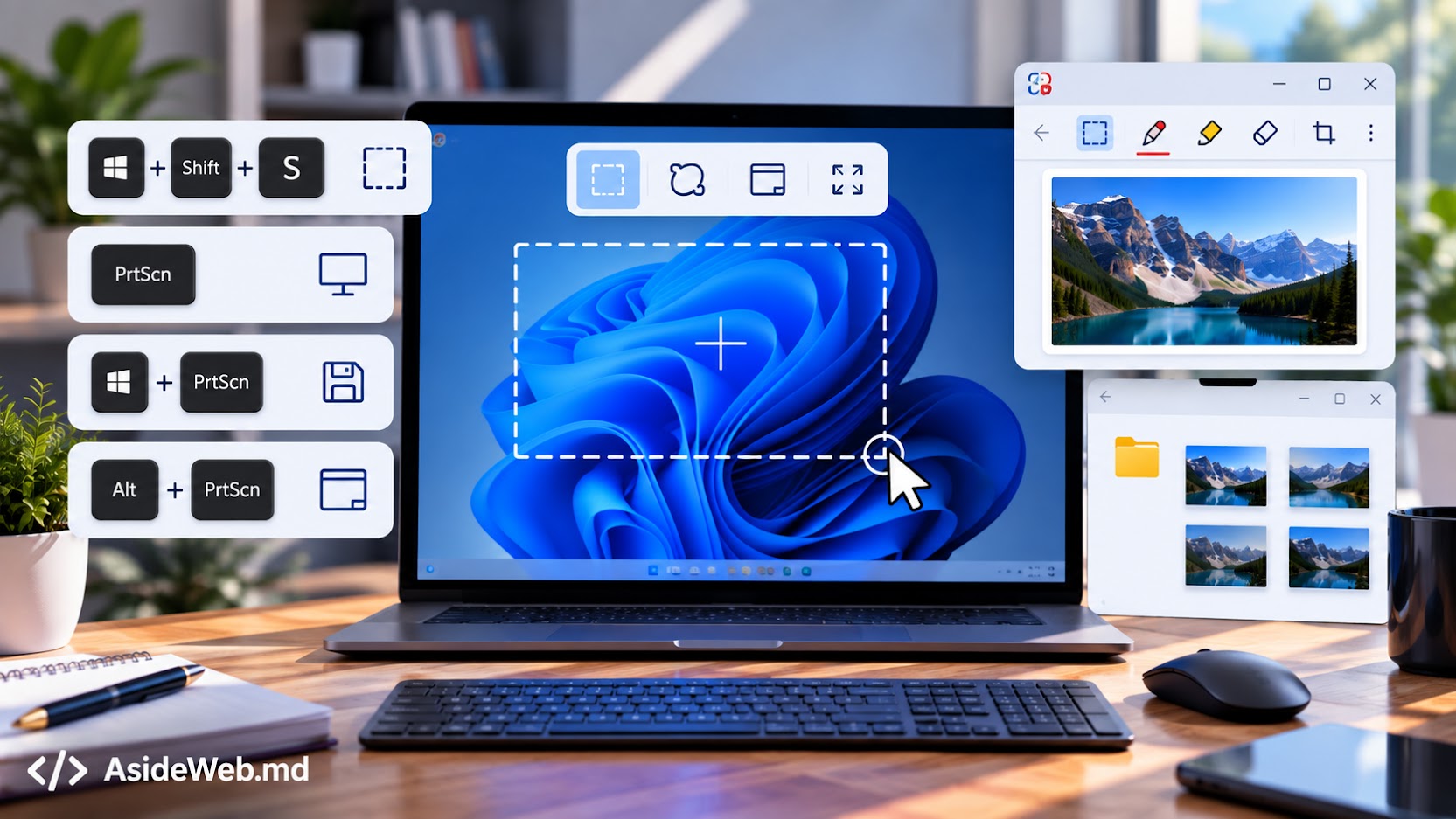
Windows provides several screenshot methods. You can capture the entire screen, only the active window, or a specific area.
The easiest method — Windows + Shift + S
If you only need part of the screen, Windows + Shift + S is one of the fastest options.
Press Windows + Shift + S at the same time. The screen will become slightly darker and screenshot options will appear at the top. Select the area you want to capture with your mouse.
The screenshot is copied to the clipboard. You can then paste it into a message, document, email, or another application using Ctrl + V.
How to capture the entire screen with Print Screen
The Print Screen key, which may also be labeled PrtScn, allows you to capture the entire screen.
Press Print Screen, open the application where you want to use the image, and press Ctrl + V.
This method is useful when you want to quickly send an image of your entire desktop.
Windows + Print Screen — save the screenshot as a file
If you want Windows to save the screenshot as an image file automatically, use Windows + Print Screen.
The screen may briefly flash, and Windows will save the screenshot automatically in the Pictures > Screenshots folder.
This is convenient when you need to save several screenshots without manually pasting each one into an image editor.
How to capture only the active window
If several windows are open but you only want to capture the one you are currently using, press Alt + Print Screen.
Select the required window, press Alt + Print Screen, and then paste the image using Ctrl + V.
How to take a screenshot with Snipping Tool
Snipping Tool is the built-in Windows screenshot utility. You can open it from the Start menu and select the area you want to capture.
The advantage of this tool is that you can review the screenshot, crop it, and save it before sending it.
Where is the screenshot saved?
It depends on the method you use. With Windows + Print Screen, the image is automatically saved in the Pictures > Screenshots folder.
When using Windows + Shift + S or the regular Print Screen key, the screenshot is generally copied to the clipboard and can be pasted with Ctrl + V.
What if your keyboard does not have a Print Screen key?
Some laptops do not have a separate Print Screen key. In that case, the easiest solution is to use Windows + Shift + S or Snipping Tool.
On some laptops, the Print Screen function is combined with another key. You may need to press it together with Fn.
Which screenshot method should you choose?
For most situations, Windows + Shift + S is the most practical option because you can select exactly the part of the screen you need.
If you want to save the entire screen as an image file, use Windows + Print Screen. For a single active window, Alt + Print Screen is more suitable.
How to send a screenshot quickly
If you need to quickly show someone what is on your screen, press Windows + Shift + S, select the required area, and paste the screenshot with Ctrl + V directly into your message.
This is especially useful when you need to show an error, send information from a website, or explain to a colleague what is displayed on your computer.
Conclusion
You do not need separate software to take screenshots in Windows. The two most useful shortcuts to remember are Windows + Shift + S for selecting an area and Windows + Print Screen for quickly saving the entire screen.
If you have problems with your computer, Windows, or everyday software, AsideWeb.md can help with the technical side. For business websites, AsideWeb.md also handles website development and technical configuration, while the website remains hosted in the owner’s own hosting account.
Have a Project in Mind?
Tell us about your project and we will help you find the best solution.