
Why Has Your Computer Become Slow and What Can You Do?

Why Has Your Computer Become Slow and What Can You Do?
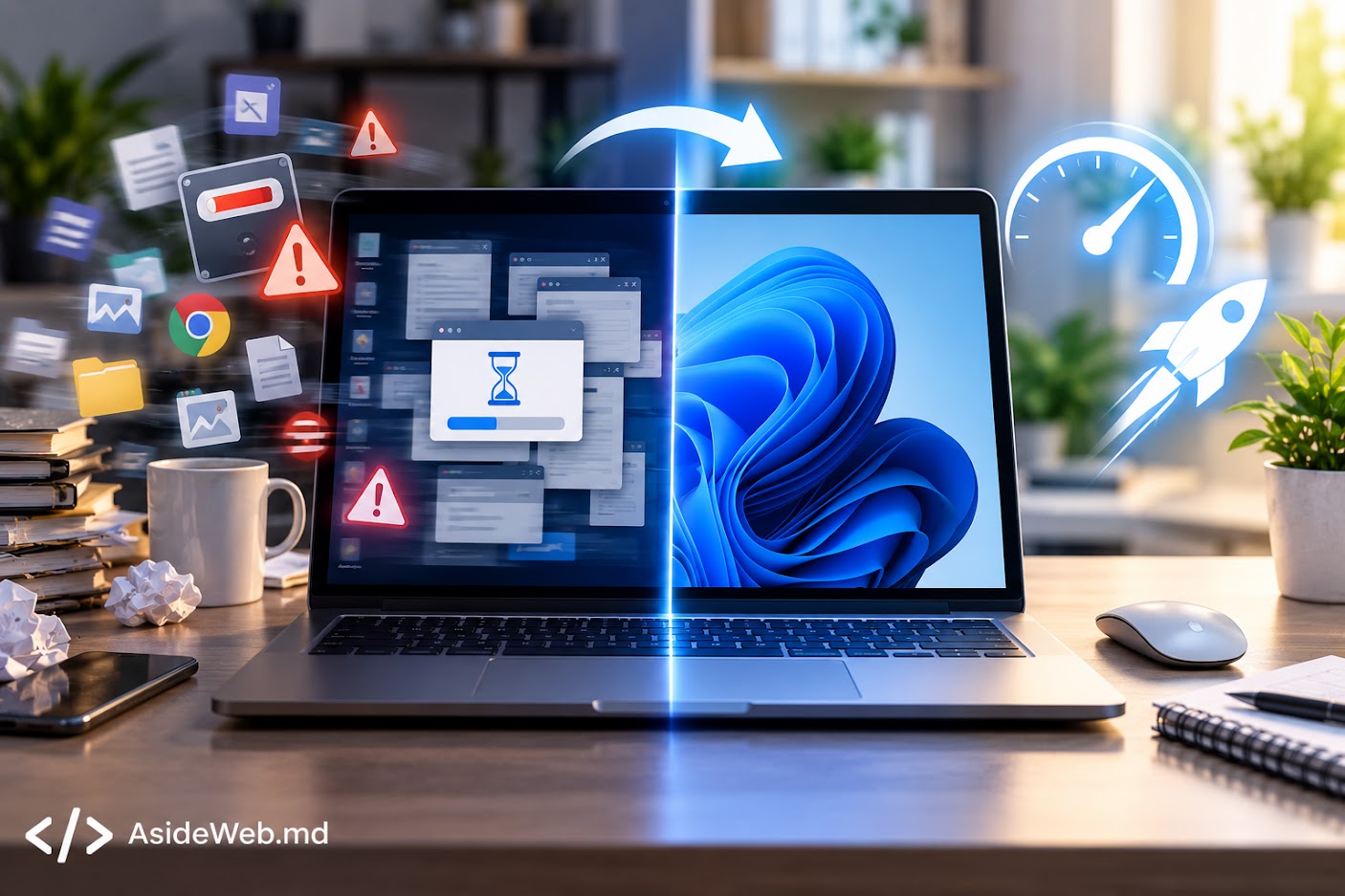
A computer that used to work normally may gradually become slower. Windows may take longer to start, applications may open more slowly, or the system may respond with a noticeable delay. This does not always mean that you need a new computer.
In many cases, the cause can be identified by checking a few basic Windows settings and resources.
1. Check the Available Disk Space
If the drive where Windows is installed has very little free space, the computer may become slower.
Check the available space in File Explorer, especially on drive C:. If it is nearly full, remove unnecessary files and applications or move large files to another drive or cloud storage.
2. Check Apps That Start Automatically
Some applications start automatically when Windows loads. If there are too many of them, startup can take longer and some apps may continue using system resources in the background.
Press Ctrl + Shift + Esc to open Task Manager and check Startup apps. Applications that do not need to start automatically can be disabled.
3. Check What Is Using System Resources
Task Manager shows which applications are using the processor, memory and disk.
Press Ctrl + Shift + Esc and open the Processes section. If an application is constantly using a large amount of resources, check whether you need it and close it if appropriate.
Do not end Windows processes that you do not recognise simply to free up resources.
4. Remove Unnecessary Temporary Files
Windows and applications create temporary files during normal use. Some of these files can be removed to free up storage space.
In Windows, open Settings → System → Storage → Temporary files to see which types of data are available for removal.
5. Check Windows Updates
Windows and application updates can include fixes and improvements. Check periodically for available updates for Windows and the important applications you use.
6. Check Your Browser
If the computer becomes especially slow while browsing the internet, the browser may be one of the causes. A large number of open tabs and extensions can use significant amounts of memory and other resources.
Close tabs you no longer need and review installed extensions. Disable extensions that you do not use.
7. Restart the Computer
Sometimes a simple restart can temporarily resolve problems caused by applications or processes that have been running for a long time.
If the computer has not been restarted for a long period and has started to slow down, restart it and check whether its performance changes.
8. Check the Hardware
If the simple solutions do not help, the problem may be related to the computer’s hardware.
RAM capacity, storage type and the age of the components can affect performance. A computer with an SSD and sufficient RAM can behave very differently from an older system with a traditional hard drive.
What Should You Check First?
If your computer has become slow, you do not need to change everything at once. Start with the basic checks:
- check free space on drive C:
- check startup applications
- check CPU and memory usage
- remove unnecessary temporary files
- check Windows updates
- restart the computer
Conclusion
A slow computer does not automatically mean that it needs to be replaced. Before buying a new device, check available storage, background applications, temporary files, updates and the condition of the hardware.
If the computer remains significantly slow, a technical check may help identify the exact cause and the appropriate solution.
Have a Project in Mind?
Tell us about your project and we will help you find the best solution.